A bench workflow for professional locksmiths
How to build an SFIC A2 pinning chart without spreadsheet errors
Enter the known operating, control, and master bittings; choose the exact SFIC A2 profile; then review each chamber before loading the core. A good chart should show the pin stack for every chamber, identify invalid inputs, and total the required pins so the calculation can be checked against the job specification.
Use this workflow only for locks and key systems you are authorized to service. PinningLab starts from known bittings; it does not decode locks or originate unknown keys.
Professional pinning charts for iPhone and iPad
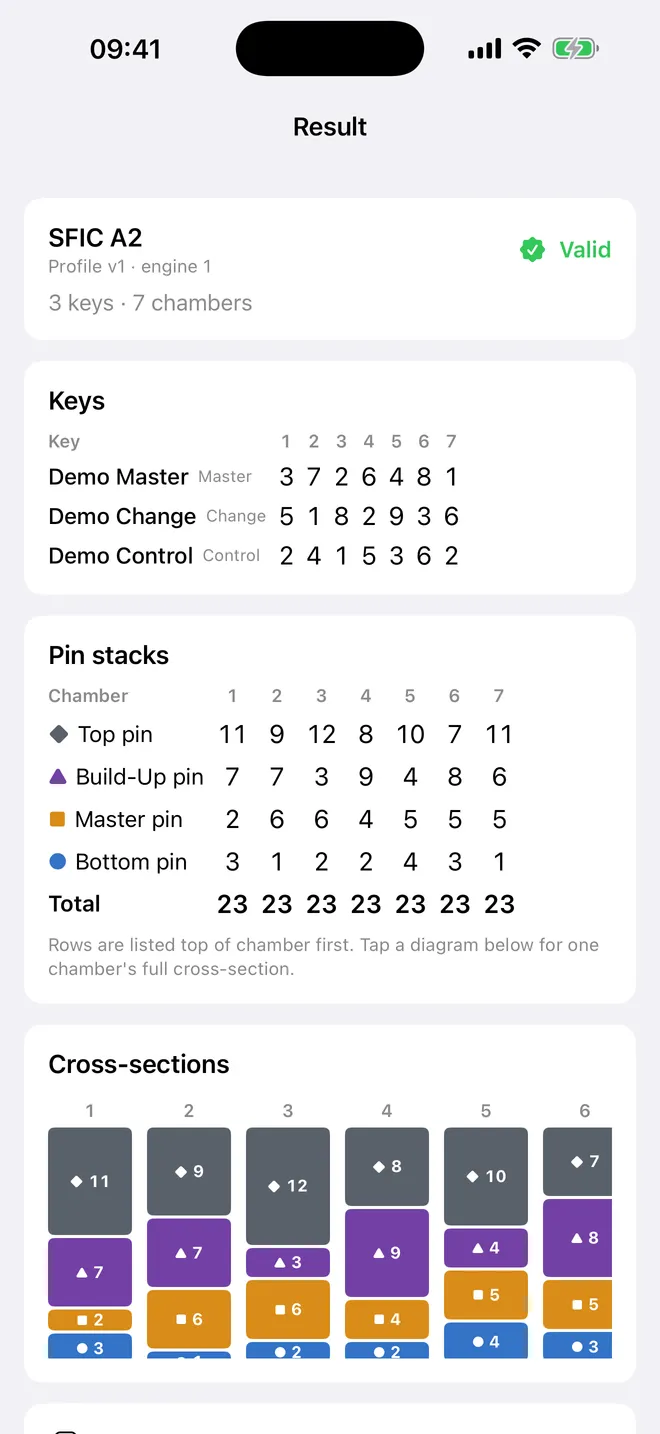
01 / Start with the job record
Gather the inputs before calculating
An SFIC pinning calculator is useful only when the inputs match the actual authorized system. Confirm the core format, chamber count, operating key, control key, any master key used by the job, and the depth system. Then select the pin-kit profile that matches the components on your bench.
Inputs to confirm
- Known change-key or operating-key bitting
- Known control-key bitting
- Known master-key bitting, when applicable
- Five-, six-, or seven-chamber configuration
- Exact depth, increment, MACS, and pin-kit profile
- Job name or reference that does not expose unnecessary sensitive detail
Avoid relying on a remembered setup or a nearby spreadsheet from another system. A small profile difference can produce a chart that is internally neat but wrong for the cylinder. The safest starting point is the current job documentation and current manufacturer service information.
02 / Calculate in a fixed order
A repeatable SFIC A2 chart workflow
- Select SFIC A2 and the chamber count
Match the core in front of you. Do not let a previous job’s chamber count carry into a new calculation.
- Choose the exact profile
Use the approved depth and pin-kit definition for the system. If the profile is uncertain, stop and verify it before continuing.
- Enter the known bittings
Use a consistent left-to-right convention and compare each entered position with the source record before calculating.
- Read the chart by chamber
Review the operating and control shear-line relationships and the complete stack for chamber one, then repeat the same check through the final chamber.
- Review totals and export
Use the total pin inventory as a preparation aid, then retain a PDF or CSV only under your shop’s handling and access rules.
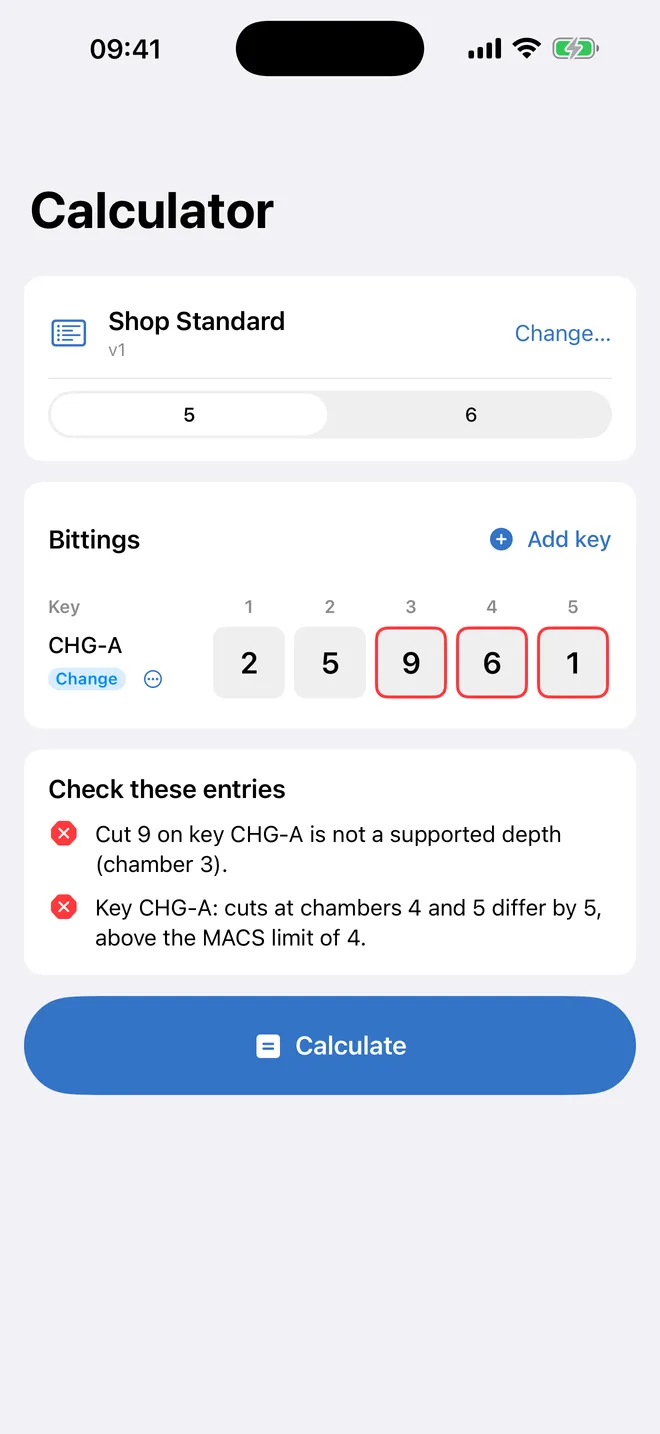
03 / Treat warnings as stop signs
Check more than the arithmetic
A useful SFIC pinning chart must fit the selected system, not merely add up. Review unsupported depth values, adjacent-cut or MACS conflicts, control collisions, and pin values that the selected kit cannot supply. A pinning-chart app should identify the chamber involved so you can return to the source input instead of hunting through a long spreadsheet.
Depth validation
Every entered cut must belong to the selected depth system.
MACS review
Adjacent cuts must remain within the limit defined for the selected profile.
Control relationship
Review control-related conflicts using the correct SFIC A2 rules and system documentation.
Pin-kit availability
Confirm that every calculated pin exists in the selected kit; do not silently round or substitute.
When a check fails, correct the input or profile and calculate again. Do not make the warning disappear by forcing a nearby value. The goal is a traceable chart that another qualified person can compare with the same known bittings and system specification.
04 / Carry the chart into the work
Use the result as a controlled bench record
Before loading pins, compare the job identifier, profile, chamber count, and bitting rows one more time. Work chamber by chamber and use the visual stack as a second representation of the table. The inventory total can help stage components, while the table remains the exact reference for placement.
After assembly, follow your established inspection and functional-test procedure. If the result does not match the expected operation, return to the source record, measurements, and manufacturer guidance. Do not adjust a chart by trial and error and then lose the reason for the change.
A focused locksmith tool
PinningLab keeps calculation, validation, and inventory in one job
PinningLab supports SFIC A2 and generic conventional charts with fast, spreadsheet-like entry. It shows chamber tables, visual pin stacks, and total inventory; flags depth, MACS, control, and pin-kit problems; and stores encrypted job records locally.
- Five, six, or seven chambers
- Exact chamber warnings
- Visual pin stacks
- PDF and CSV exports
- Optional redacted export
- Face ID or Touch ID access
Professional pinning charts for iPhone and iPad

Works offline. No account required.
Frequently asked questions
SFIC A2 pinning chart FAQ
What information do I need before building an SFIC A2 pinning chart?
Start with the known change-key bittings, control-key bitting, master-key bitting when the system uses one, chamber count, and the exact depth and pin-kit profile authorized for the system. Do not substitute a generic profile for the system in front of you.
Why should I validate an SFIC chart chamber by chamber?
A chart can look plausible while one chamber contains an unsupported depth, MACS conflict, control collision, or unavailable pin. A chamber-level check points to the value that must be reviewed before assembly.
Can PinningLab decode a lock or generate a key?
No. PinningLab calculates charts from known bittings and a profile selected by the user. It does not decode locks, originate unknown keys, teach bypass methods, or replace authorization and professional judgment.
Does PinningLab work for conventional cylinders?
Yes. The app supports SFIC A2 calculations and generic conventional pinning charts, with five-, six-, and seven-chamber workflows.
Can I use the chart without checking the manufacturer system?
No. Confirm the cylinder family, keying specification, approved pin kit, tolerances, and current manufacturer documentation. The physical system and the authorized job specification remain the source of truth.
PinningLab is a calculation and recordkeeping tool for authorized professional work. Verify all outputs against the applicable manufacturer documentation, system specification, pin kit, and your own measurements before assembly.